
Linksys SPA 2102 VoIP configuration and setup guide
If you don't have pre-configured Linksys SPA 2102 provided by VoIPVoIP and you are using your own device please check Linksys SPA 2101 BYOD Configuration guide.
Getting Started
If you don't have a router and only have a standard DSL/cable modem or if your modem does not have router function, in order to use VoIPVoIP services you need to install Linksys SPA-2102 VoIP adapter with router function. The SPA-2102 also features two phone lines for connection to existing analog telephones
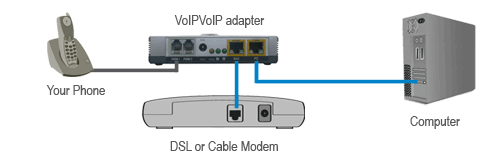
Note: If your modem is connected to the computer through a USB port, remove the USB cable from the modem and computer. You will not need the USB cable. You will need to connect DSL/cable modem to VoIP router/adapter with an ethernet cable.Ethernet port looks similar to phone jack but is slightly larger.
1.) Turn off your computer, modem and the VoIP phone adapter (for modems without an off/on switch just unplug the power to the unit).
2.) Disconnect your computer from your high-speed modem, and then using that same cable, plug the cable into the PC port of the VoIP phone adapter.
3.) Connect the WAN port on the VoIP phone adapter to your DSL or Cable modem (the same port your computer was connected to) using the Ethernet cable included in the Kit.
4.) Connect your touchtone telephone to the phone 1 port on the VoIP phone adapter using a standard telephone cable.
5.)Turn on your modem (and your computer) and wait for them to start up (typically, when all lights have turned green.)
6.) Plug the power adapter into the power jack on the VoIP VoIP adapter and then into an electrical outlet. This will turn the VoIP phone adapter on.The light on the VoIP VoIP adapter will flash red until the adapter connects to the Service. Pick up the telephone handset and listen for a dial tone. You can now make calls now!
You can make calls now!
Problems? Please check our installation troubleshooter.
Configuring you own device. Check Linksys SPA 2101 BYOD Configuration guide.
Advanced Installation for PPPoE
If you use DSL and your provider requires “User Name & Password” authentication, you have a rare opportunity to do something you probably never thought you’d get to experience – changing your PPPoE configuration. (“PPPoE” stands for Point-to-Point Protocol over Ethernet.) This sounds complicated, but it can be completed in just a few steps.
1.) Turn on your computer and open your Internet browser.
2.) Enter 192.168.0.1 into your browser’s address bar (near the top of the screen) and press enter.
3.) This allows access to the VoIP phone adapter setup screen.
4.) You will be presented with the configuration page. Click on the Wan Setup tab. Midway on the page you will see the fields asking for your PPPoE Login Name and PPOE Login Password.
5.) Enter the PPPoE Login Name (User name) and Password that were provided to you by your Internet Service Provider (ISP). If you don’t know what these are you will need to contact your ISP.
6) Scroll to the bottom of the page and click “Submit All Changes” .
7.) Your VoIP phone adapter will reboot now. (this will take about 5 seconds). Close the browser.
8.) Pull out the power supply plug from your VoIP phone adapter. Wait 10 seconds, and then plug the power supply back into the adapter. The yellow STAT light will blink for up to one minute. Wait until both the yellow STAT and the Green ( lights are illuminated and have stopped blinking.
9.) Check for Internet access now.
Problems? Please check our installation troubleshooter.
If you don't have pre-configured Linksys SPA 2102 provided by VoIPVoIP and you are using your own device please check Linksys SPA 2101 BYOD Configuration guide.