
Linksys PAP2 VoIP settings & configuration Guide
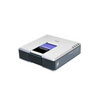
The Linksys PAP2 VoIP Adapter enables use of our high-quality feature-rich telephone service through your cable or DSL Internet connection. Just plug it into your home Router or Gateway and use the two standard telephone jacks to connect your existing phones. Each phone jack operates independently, with separate phone service and phone numbers - like having two phone lines. With VoIPVoIP, you'll get clear telephone reception, even while using the Internet at the same time for normal data operations
STEP 1
You must first determine what IP address it received. To do this, you need to pick up the phone attached to the Line 1 jack and dial: **** (four asterisks)
then dial: 110 #
and you will be told the IP address of your device (e.g. 192.168.0.100)
STEP 2
Go to any browser equipped computer on your network and enter the address: http://<IP ADDRESS>/ where <IP ADDRESS>/ is replaced by the address that was given to you in STEP 1.
STEP 3
Click on the "Admin Login" button near the top right side of the screen, then click on the "Line 1" tab.

STEP 4
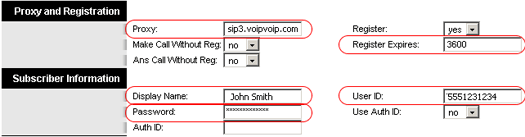
You need to modify only a few parameters from the factory default. They are listed here:
Proxy: sip3.voipvoip.com
Display Name: Enter your full name, this will show up as part of your caller ID.
User ID: Enter the account number assigned to you when signed up for VoIPVoIP service.
Password: Enter the same password used to login to your VoIPVoIP account
STEP 5
To save bandwidth, you can change Line 1 "Preferred Codec" to G729a. Also change the "Use Pref Codec Only" to No. You can only do this for one line. So, if Line 1 is on G.729a, Line 2 has to be some other codecs. We do not support G.723.

STEP 6
Click on the "Save Settings " button at the bottom of the form.

STEP 7
Make Calls!
Problems? If you get one-way audio, or cannot get a dial tone or cannot make/receive calls with your VoIP device, you are probably behind firewall. Your router's firewall (also known as NAT) is blocking certain operations of the VoIP telephone adapter or some of the settings of the adapter is not entered correctly.
If you are sure that your account number & password is entered correctly to your device, before trying to resolve this issue on your router or voip device, you can get all device settings (other than account number and password) remotely from our servers.
In order to receive configurations remotely go to VOICE/ ADVANCED and find PROVISIONING tab and change the field below:
- Profile Rule: https://config.voipvoip.com/$PN
Click on the "Submit All Changes" button at the bottom of the form. Unplug your device from the power and plug back after 5 seconds to reboot the device. Device will now get settings remotely from our servers.
Test again to make and receive calls.
Still Problems? Please check our VoIP device troubleshooter
NAT/Firewall Issues
If you get one-way audio, you are probably behind NAT. Make the following changes on LINE 1 (you have to click on advanced view to see these options)

on the SIP menu;
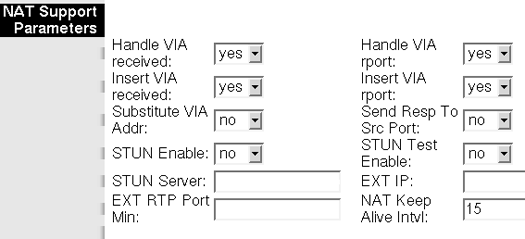
If the phone fails to login, please take the time to double check your configuration as above. If everything appears to be correct, the problem may be your firewall.