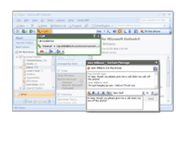
Bria Softphones
Bria softphone product suite from Counterpath is comprised of desktop and mobile applications which enable consumers or business users to make VoIP (Voice over IP) audio and video calls, send Instant Messages and manage their presence, all in an easy-to-use software application.
If you have access to a WiFi or 3G Internet connection with your Computer, Android phone or iPhone you can save money by using the Internet to connect your call instead of using your mobile phone minutes. No roaming or out-of-network fees. Make your calls from anywhere in the world to anywhere for just a few pennies a minute. Simple to configure, inexpensive to use.
Click here to learn more about mobile voip services and pricing.

Bria Android Edition
Bria Android Edition is a highly secure, standards-based mobile VoIP softphone that works over both 3G and Wi-Fi networks.
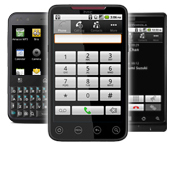
Click here for Bria Android Edition configuration guide with VoIPVoIP service
Bria Android Edition
Bria iPhone Edition is a SIP-based phone for Apple iPhone and iPod touch that uses a Wi-Fi or 3G connection to make and receive calls.
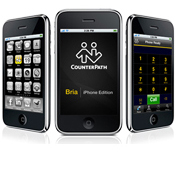
Click here for Bria Android Edition configuration guide with VoIPVoIP service
Bria for Computer
The Bria softphone is a carrier and enterprise grade SIP softphone built on the latest platforms.
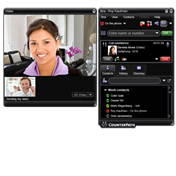
Bria for Microsoft Outlook
Bria for Microsoft Outlook® is a plug-in that adds an enterprise-grade softphone to your Outlook application, enabling you to make and receive phone calls and use phone features directly from your contact list, emails and Outlook desktop.